> ## Documentation Index
> Fetch the complete documentation index at: https://docs.dncscrub.com/llms.txt
> Use this file to discover all available pages before exploring further.
# Salesforce
> Add DNCScrub TCPA and Do Not Call compliance scrubbing directly to your Salesforce Leads, Contacts, Accounts, and Campaign Members
The **CCC DNCScrub** app for Salesforce brings TCPA and Do Not Call compliance checking natively into your CRM. It checks phone numbers against federal and state DNC registries, wireless lists, litigator databases, and your own Internal Do Not Call list — directly on Lead, Contact, Account, and Campaign Member records, before your team dials.
The app is a native [Lightning](https://www.salesforce.com/products/platform/lightning/) application built with Lightning Web Components. Scrub results are stored in custom fields on your records, so they work with standard Salesforce reports, list views, flows, and validation rules.
## Prerequisites
* A Salesforce org on **Lightning Experience** (Developer, Professional with API access, Enterprise, or Unlimited edition)
* Permission to install apps and edit Lightning record pages (System Administrator or equivalent)
* A DNCScrub account with API access — your **Login ID** (API key) and, optionally, a **Campaign ID**
## Step 1: Install the App
Install the CCC DNCScrub managed package using the link that matches your org. You must be logged in to the target org before opening the link.
**Production:**
`https://login.salesforce.com/packaging/installPackage.apexp?p0=04thm000002JWSrAAO`
**Sandbox:**
`https://test.salesforce.com/packaging/installPackage.apexp?p0=04thm000002JWSrAAO`
**Specific Org:** replace `` with your org's My Domain.
`https://.sandbox.my.salesforce.com/packaging/installPackage.apexp?p0=04thm000002JWSrAAO`
Copy the install URL for your org type above and open it in your browser. Salesforce will confirm the components being added.
Select **Install for All Users** (or the scope that fits your rollout).
During install, Salesforce shows a **"Yes, grant access to these third-party web sites"** checkbox listing the DNCScrub API endpoints. Check it to approve. You do **not** need to add these URLs manually — the package includes them as active Remote Site Settings and creates them for you on install.
**Each org is configured separately — including sandboxes.** Installing the package does not carry over configuration between environments. In every org you install into, repeat [Step 2](#step-2-connect-your-dncscrub-account) to enter your Login ID / Campaign ID and [Step 3](#step-3-assign-permission-sets) to assign the permission sets. If you're testing against a sandbox, confirm the Login ID you enter is valid for the environment you're pointing at.
## Step 2: Connect Your DNCScrub Account
After installing, open the **CCC DNCScrub** app from the App Launcher and go to the **Settings** tab to enter your DNCScrub credentials. These settings apply org-wide to every scrub operation.
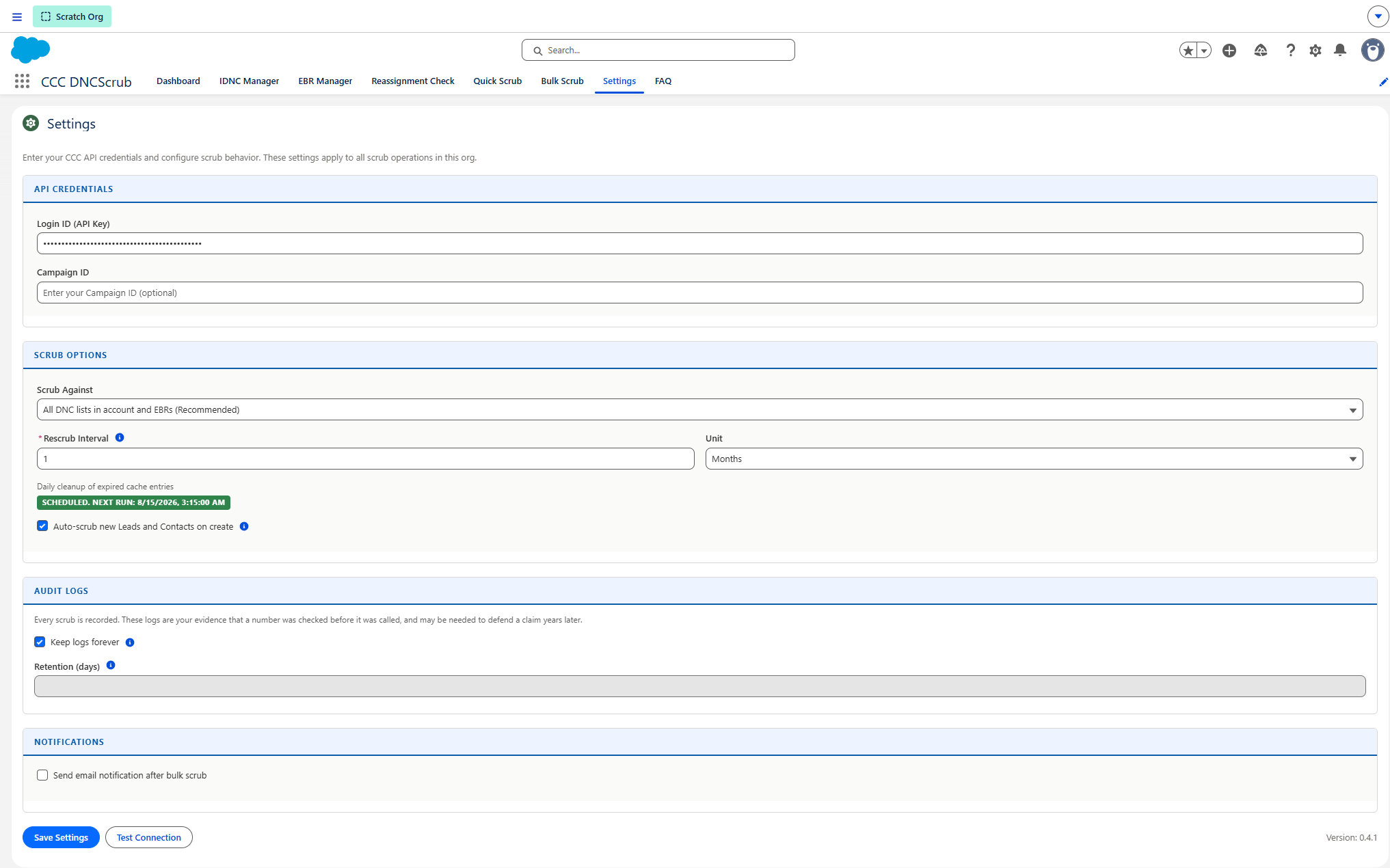 Under **API credentials**, enter:
* **Login ID (API Key)** — your DNCScrub API key
* **Campaign ID** — the DNCScrub campaign used to scrub (optional)
Select **Test Connection** to verify your Login ID works against the DNCScrub API.
Configure the **Scrub Options**:
* **Scrub Against** — which lists to screen numbers against
* **Rescrub Interval** and **Unit** — how long a scrub result stays valid before the number is sent to the API again. Enter a number and choose **Hours**, **Days**, or **Months**. Months and days use calendar arithmetic, so `1 Month` means one calendar month rather than 720 hours. `0` re-checks every time.
* **Auto-scrub new Leads and Contacts on create** — scrubs a record automatically as soon as it is created with a phone number.
Optionally enable **Notifications** to send an email after a bulk scrub completes.
Under **Audit Logs**, leave **Keep logs forever** selected unless you have a retention policy that says otherwise. These logs are your evidence that a number was checked before it was called, and may be needed to defend a claim years later. Clearing the checkbox reveals a **Retention (days)** field, which accepts a minimum of 1500 days — a little over the four-year window in which a TCPA claim can be brought.
Select **Save Settings**.
**Check the version first when something looks wrong.** The installed version is shown at the bottom right of the Settings page — for example **Version: 0.4.1**. After an upgrade, a browser may keep running the previous version's components until you hard-refresh (**Ctrl+Shift+R**, or **Cmd+Shift+R** on a Mac). If the version shown is the new one but the app still behaves like the old one, it is the browser cache; if the version shown is the old one, the upgrade did not reach that org.
### Daily cleanup job
Under **Scrub Options**, the Settings page reports whether the daily cleanup job is scheduled and when it next runs. The job removes expired entries from the scrub cache (and old audit logs, if you have set a retention period).
If it shows **Not scheduled**, select **Schedule now**. Orgs that received the app by package install normally have it already; orgs set up by a direct metadata deployment do not, because deployments do not run install scripts.
## Dashboard
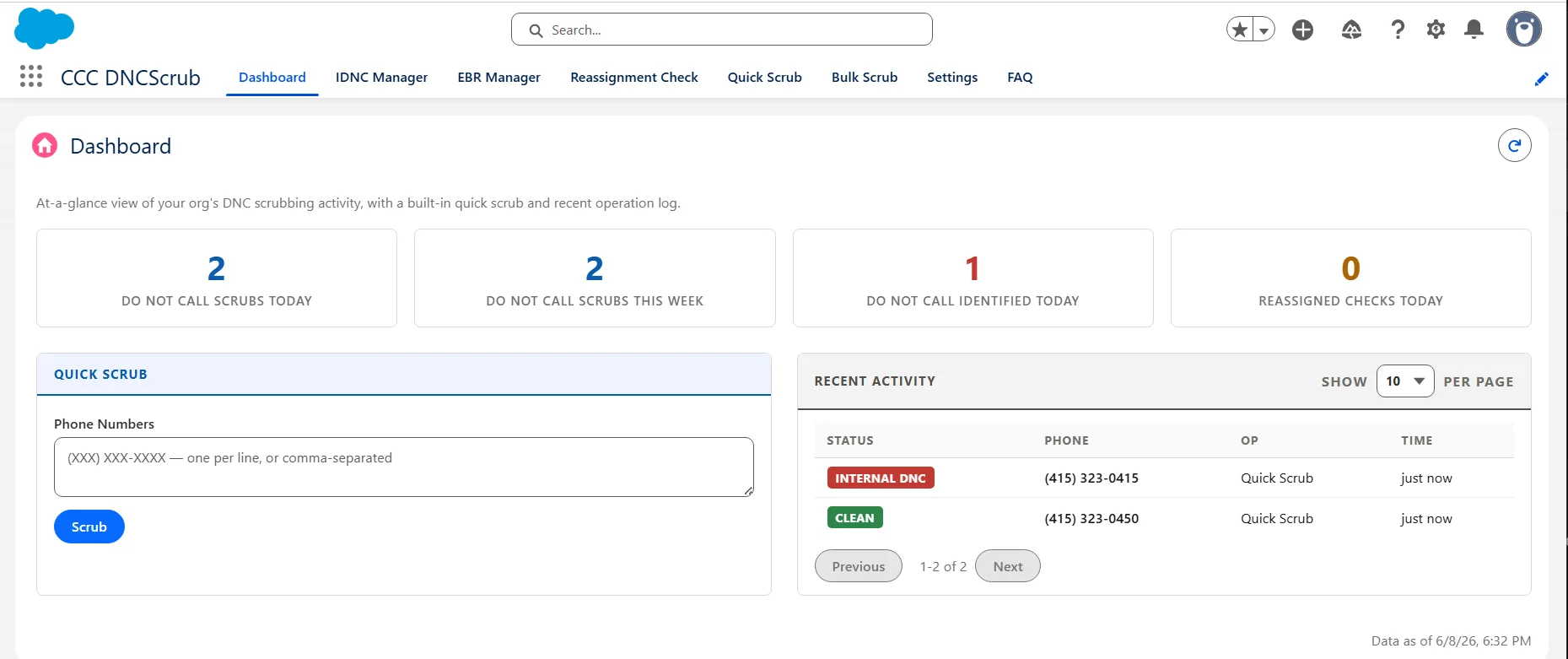
Once connected, the **Dashboard** tab is your home base — an at-a-glance view of scrubbing activity (Do Not Call scrubs today and this week, Do Not Call numbers identified today, and reassigned checks today), along with an embedded Quick Scrub and a Recent Activity log.
Under **API credentials**, enter:
* **Login ID (API Key)** — your DNCScrub API key
* **Campaign ID** — the DNCScrub campaign used to scrub (optional)
Select **Test Connection** to verify your Login ID works against the DNCScrub API.
Configure the **Scrub Options**:
* **Scrub Against** — which lists to screen numbers against
* **Rescrub Interval** and **Unit** — how long a scrub result stays valid before the number is sent to the API again. Enter a number and choose **Hours**, **Days**, or **Months**. Months and days use calendar arithmetic, so `1 Month` means one calendar month rather than 720 hours. `0` re-checks every time.
* **Auto-scrub new Leads and Contacts on create** — scrubs a record automatically as soon as it is created with a phone number.
Optionally enable **Notifications** to send an email after a bulk scrub completes.
Under **Audit Logs**, leave **Keep logs forever** selected unless you have a retention policy that says otherwise. These logs are your evidence that a number was checked before it was called, and may be needed to defend a claim years later. Clearing the checkbox reveals a **Retention (days)** field, which accepts a minimum of 1500 days — a little over the four-year window in which a TCPA claim can be brought.
Select **Save Settings**.
**Check the version first when something looks wrong.** The installed version is shown at the bottom right of the Settings page — for example **Version: 0.4.1**. After an upgrade, a browser may keep running the previous version's components until you hard-refresh (**Ctrl+Shift+R**, or **Cmd+Shift+R** on a Mac). If the version shown is the new one but the app still behaves like the old one, it is the browser cache; if the version shown is the old one, the upgrade did not reach that org.
### Daily cleanup job
Under **Scrub Options**, the Settings page reports whether the daily cleanup job is scheduled and when it next runs. The job removes expired entries from the scrub cache (and old audit logs, if you have set a retention period).
If it shows **Not scheduled**, select **Schedule now**. Orgs that received the app by package install normally have it already; orgs set up by a direct metadata deployment do not, because deployments do not run install scripts.
## Dashboard
Once connected, the **Dashboard** tab is your home base — an at-a-glance view of scrubbing activity (Do Not Call scrubs today and this week, Do Not Call numbers identified today, and reassigned checks today), along with an embedded Quick Scrub and a Recent Activity log.
 ## Step 3: Assign Permission Sets
The app ships with two permission sets. Assign them to your users from **Setup → Permission Sets**.
| Permission Set | For | Access |
| - | - | - |
| **CCC Admin** | Administrators | Full read/write on all CCC objects and fields, all tabs including Settings, and bulk schedule management |
| **CCC User** | Standard users | Read-only scrub fields on records, can trigger scrubs and view results; no access to Settings or schedule management |
**User seeing an "invalid access" error, or a Standard user can't scrub?** They're almost always missing a permission-set assignment. Standard users have no access to the scrub fields or actions until you assign them **CCC User** (or **CCC Admin**) — assigning the permission set resolves it. This must be done in each org, including sandboxes.
## Step 4: Add the Scrub Panel to Record Pages
The **CCC DNC Scrub Panel** is a Lightning component you place on Lead, Contact, Account, or Campaign Member record pages.
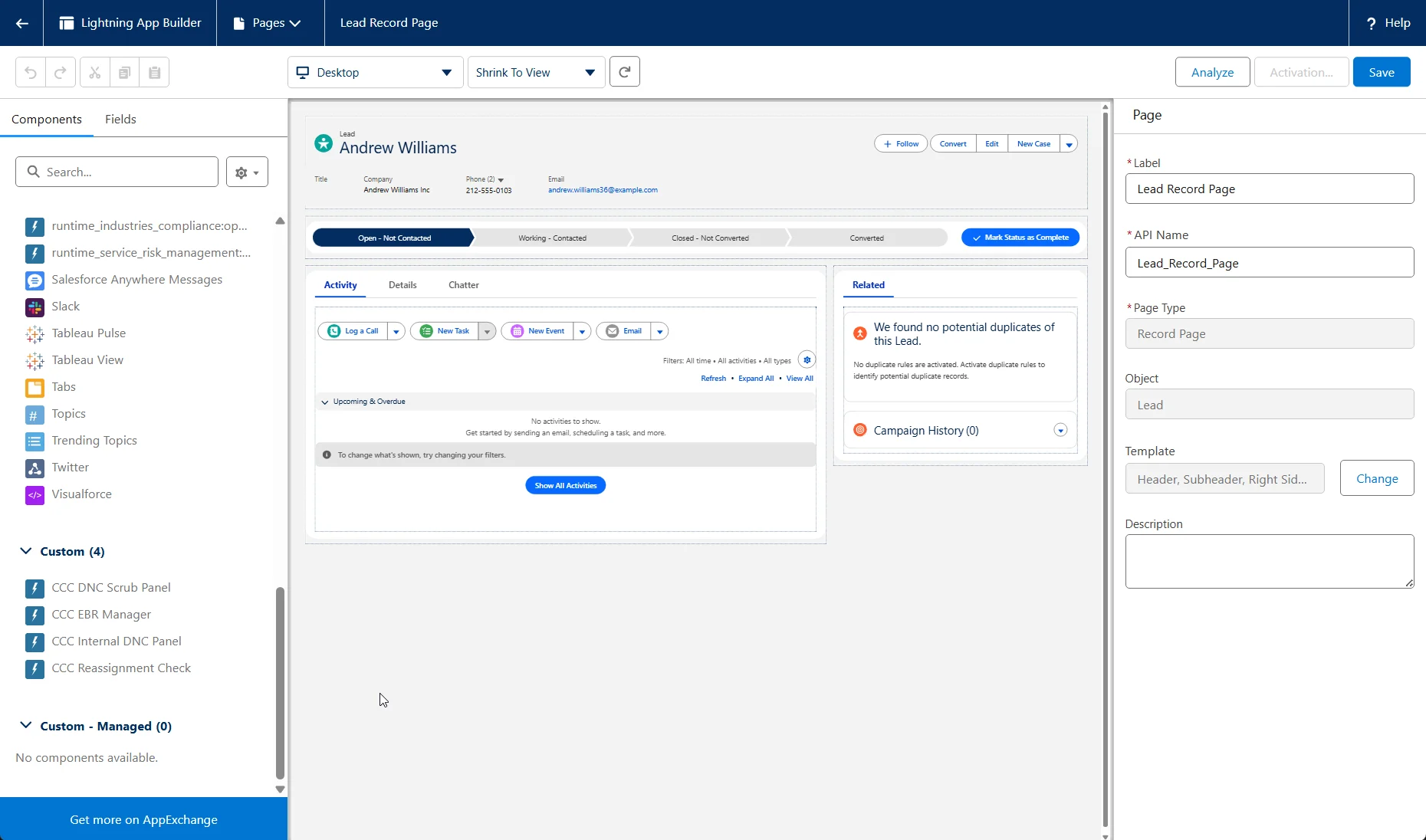
On a record, select the gear icon → **Edit Page** to open Lightning App Builder.
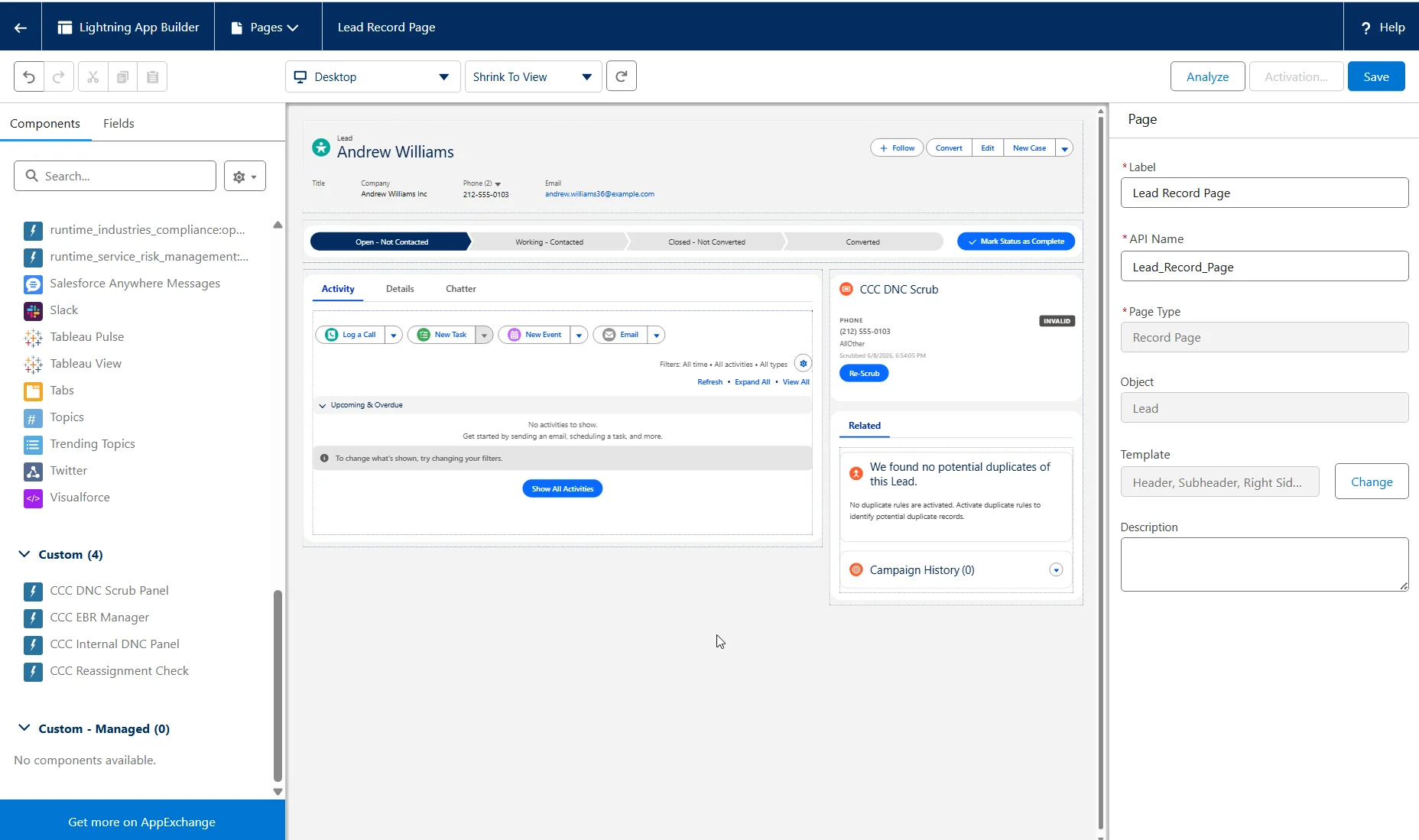
Drag the **CCC DNC Scrub Panel** component onto the page (the sidebar works well).
Set the **Phone Fields to Scrub** property to a comma-separated list of field API names — for example `Phone,MobilePhone,HomePhone`. Each field is scrubbed and displayed independently.
Save and **Activate** the page for the relevant app, record type, or profile.
## Step 3: Assign Permission Sets
The app ships with two permission sets. Assign them to your users from **Setup → Permission Sets**.
| Permission Set | For | Access |
| - | - | - |
| **CCC Admin** | Administrators | Full read/write on all CCC objects and fields, all tabs including Settings, and bulk schedule management |
| **CCC User** | Standard users | Read-only scrub fields on records, can trigger scrubs and view results; no access to Settings or schedule management |
**User seeing an "invalid access" error, or a Standard user can't scrub?** They're almost always missing a permission-set assignment. Standard users have no access to the scrub fields or actions until you assign them **CCC User** (or **CCC Admin**) — assigning the permission set resolves it. This must be done in each org, including sandboxes.
## Step 4: Add the Scrub Panel to Record Pages
The **CCC DNC Scrub Panel** is a Lightning component you place on Lead, Contact, Account, or Campaign Member record pages.
On a record, select the gear icon → **Edit Page** to open Lightning App Builder.
Drag the **CCC DNC Scrub Panel** component onto the page (the sidebar works well).
Set the **Phone Fields to Scrub** property to a comma-separated list of field API names — for example `Phone,MobilePhone,HomePhone`. Each field is scrubbed and displayed independently.
Save and **Activate** the page for the relevant app, record type, or profile.
 ### Scrub Panel properties
| Property | What it does |
| - | - |
| **Phone Fields to Scrub** | Comma-separated phone field API names to display and scrub (e.g. `Phone,MobilePhone`) |
| **Disable Auto-Scrub on Record View** | Turns off automatic scrubbing when the panel loads, so numbers are only checked when the user clicks **Re-Scrub** |
You can place more than one panel on the same record page with different settings — for example, one panel that auto-scrubs the business `Phone` and a second panel for `MobilePhone` that only scrubs on demand.
## Scrubbing a Record
When the Scrub Panel loads, it automatically checks every configured phone field (unless auto-scrub is disabled). If a number was scrubbed within the rescrub interval, the cached result is shown without a new API call; otherwise a fresh check runs.
Each phone field renders as its own card with a status badge, line type, carrier, region, and a **Re-Scrub** button. Click **Re-Scrub** at any time to force a fresh check.
### Scrub Panel properties
| Property | What it does |
| - | - |
| **Phone Fields to Scrub** | Comma-separated phone field API names to display and scrub (e.g. `Phone,MobilePhone`) |
| **Disable Auto-Scrub on Record View** | Turns off automatic scrubbing when the panel loads, so numbers are only checked when the user clicks **Re-Scrub** |
You can place more than one panel on the same record page with different settings — for example, one panel that auto-scrubs the business `Phone` and a second panel for `MobilePhone` that only scrubs on demand.
## Scrubbing a Record
When the Scrub Panel loads, it automatically checks every configured phone field (unless auto-scrub is disabled). If a number was scrubbed within the rescrub interval, the cached result is shown without a new API call; otherwise a fresh check runs.
Each phone field renders as its own card with a status badge, line type, carrier, region, and a **Re-Scrub** button. Click **Re-Scrub** at any time to force a fresh check.
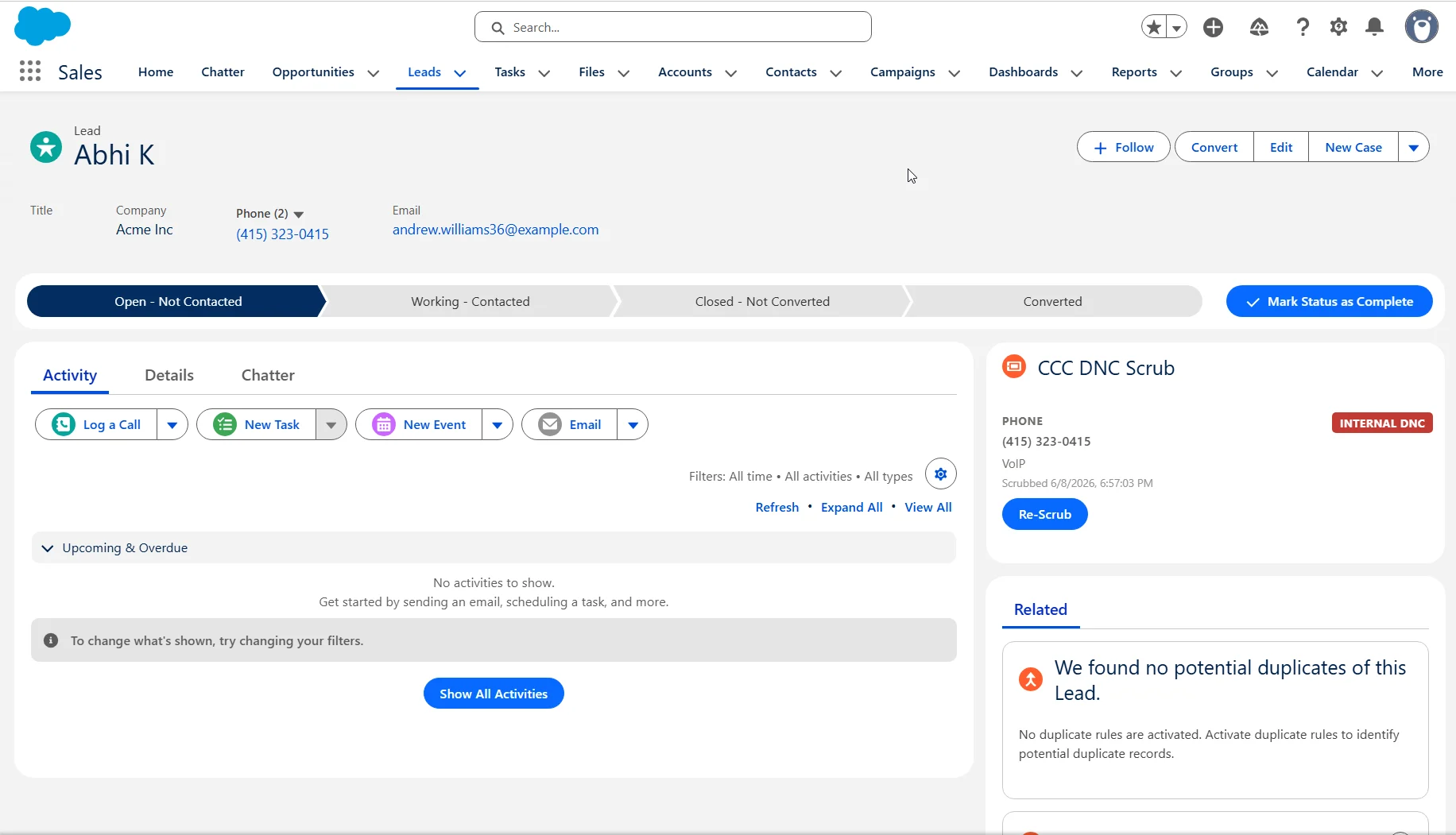 The record's summary fields always reflect the **worst** result across all phone fields. If `Phone` is *Clean* but `MobilePhone` is *Do Not Call*, the record shows **Do Not Call**.
### Reading the result codes
Each phone number receives a result code. Codes marked **Callable: Yes** are considered safe to call.
#### Scrub result codes
These codes are returned by the DNCScrub scrub API and apply to every full scrub.
| Code | Status | Callable | Description |
| - | - | - | - |
| `C` | Clean | Yes | Not on any DNC list |
| `D` | Do Not Call | No | On the National Do Not Call Registry |
| `B` | Blocked | No | Number is blocked |
| `P` | Internal DNC | No | On your Internal Do Not Call list |
| `W` | Wireless | Yes | Wireless/mobile number (may require TCPA consent) |
| `L` | Restricted Wireless | No | Wireless in a state that does not allow solicitation to wireless numbers |
| `E` | EBR Valid | Yes | Currently valid EBR, not on a DNC list |
| `O` | EBR Override | Yes | EBR override applied to an otherwise DNC number |
| `G` | EBR + Wireless/VoIP | Yes | Valid EBR on a wireless/VoIP number, not on any DNC list. Cannot be predictive-dialed — an EBR is not an exemption to those rules |
| `H` | EBR Override + Wireless/VoIP | Yes | Wireless/VoIP number with a valid EBR overriding an otherwise DNC number. Cannot be predictive-dialed |
| `F` | EBR + Wireless Restricted | Yes | Valid EBR on a wireless number in a state that prohibits solicitation to wireless **even if manually dialed** (WY, NJ, TX, LA, AZ) |
| `V` | EBR Override + Wireless Restricted | Yes | EBR overriding an otherwise DNC number that is also wireless in a state prohibiting solicitation **even if manually dialed** (WY, NJ, TX, LA, AZ) |
| `Y` | VoIP | Yes | VoIP number not in any DNC database. Only returned when VoIP scrubbing is purchased — otherwise these return as `W` |
| `I`, `M` | Invalid | No | Not a valid or well-formed phone number |
| `X` | Exemption | Yes | A legal industry exemption applies |
For full definitions of every code, see the [scrub output guide](/api-reference/scrub/output-guide).
#### Litigator-only mode codes
When the org is configured for **litigator-only screening**, the app calls the DNCScrub Litigator API instead of the Full Scrub API. That API returns a simple true/false, which the Salesforce app maps to its own two codes so results render in the same UI.
| Code | Status | Callable | Description |
| - | - | - | - |
| `LIT` | Litigator | No | Known TCPA litigator |
| `NL` | Not Litigator | Yes | Cleared by litigator screening |
## Quick Scrub
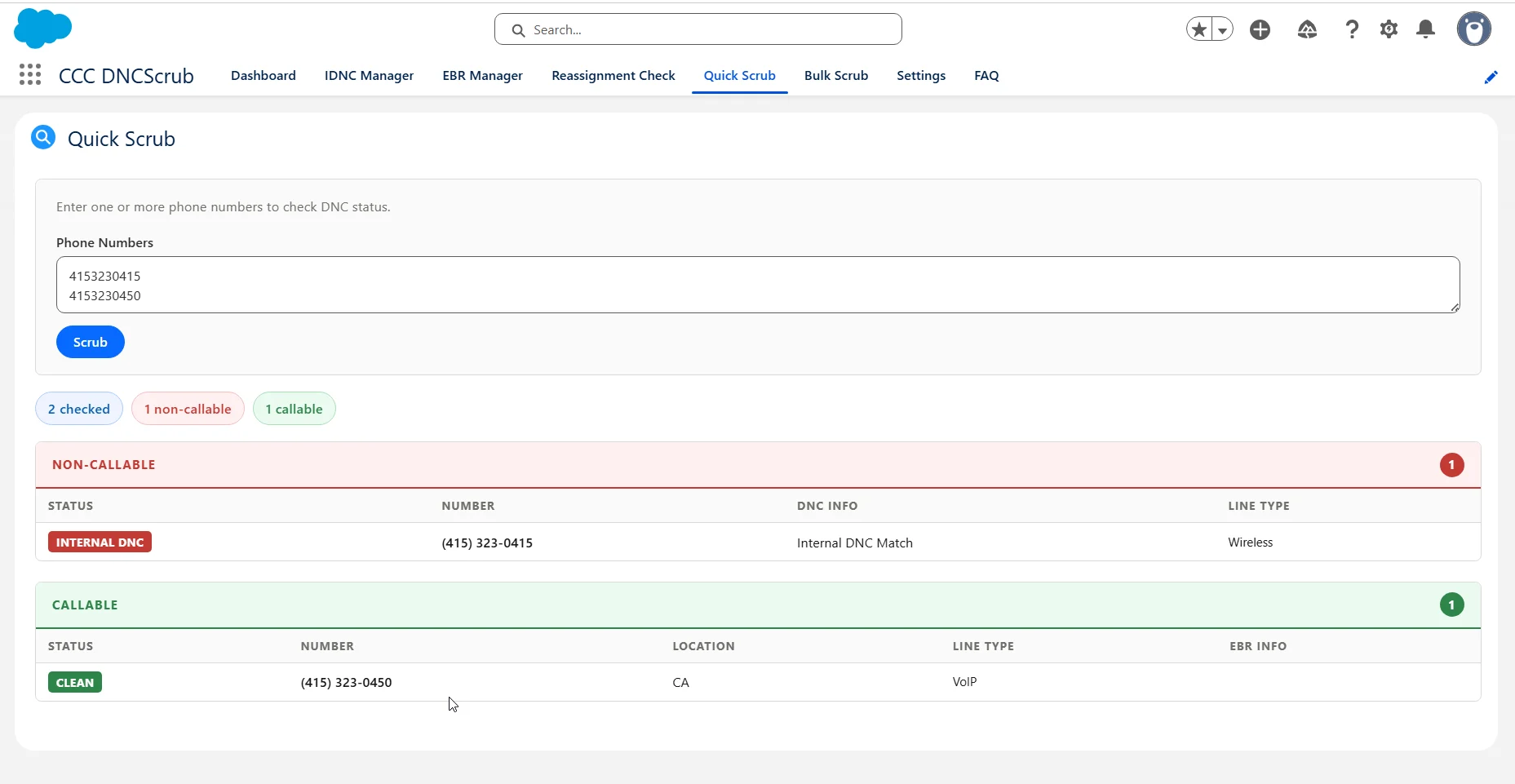
The **Quick Scrub** tab (also embedded in the Dashboard) is for ad-hoc checks. Paste one or more phone numbers — comma or newline separated — and get immediate results split into callable and non-callable groups. Quick Scrub does **not** require a Salesforce record and does **not** save results to any record.
The record's summary fields always reflect the **worst** result across all phone fields. If `Phone` is *Clean* but `MobilePhone` is *Do Not Call*, the record shows **Do Not Call**.
### Reading the result codes
Each phone number receives a result code. Codes marked **Callable: Yes** are considered safe to call.
#### Scrub result codes
These codes are returned by the DNCScrub scrub API and apply to every full scrub.
| Code | Status | Callable | Description |
| - | - | - | - |
| `C` | Clean | Yes | Not on any DNC list |
| `D` | Do Not Call | No | On the National Do Not Call Registry |
| `B` | Blocked | No | Number is blocked |
| `P` | Internal DNC | No | On your Internal Do Not Call list |
| `W` | Wireless | Yes | Wireless/mobile number (may require TCPA consent) |
| `L` | Restricted Wireless | No | Wireless in a state that does not allow solicitation to wireless numbers |
| `E` | EBR Valid | Yes | Currently valid EBR, not on a DNC list |
| `O` | EBR Override | Yes | EBR override applied to an otherwise DNC number |
| `G` | EBR + Wireless/VoIP | Yes | Valid EBR on a wireless/VoIP number, not on any DNC list. Cannot be predictive-dialed — an EBR is not an exemption to those rules |
| `H` | EBR Override + Wireless/VoIP | Yes | Wireless/VoIP number with a valid EBR overriding an otherwise DNC number. Cannot be predictive-dialed |
| `F` | EBR + Wireless Restricted | Yes | Valid EBR on a wireless number in a state that prohibits solicitation to wireless **even if manually dialed** (WY, NJ, TX, LA, AZ) |
| `V` | EBR Override + Wireless Restricted | Yes | EBR overriding an otherwise DNC number that is also wireless in a state prohibiting solicitation **even if manually dialed** (WY, NJ, TX, LA, AZ) |
| `Y` | VoIP | Yes | VoIP number not in any DNC database. Only returned when VoIP scrubbing is purchased — otherwise these return as `W` |
| `I`, `M` | Invalid | No | Not a valid or well-formed phone number |
| `X` | Exemption | Yes | A legal industry exemption applies |
For full definitions of every code, see the [scrub output guide](/api-reference/scrub/output-guide).
#### Litigator-only mode codes
When the org is configured for **litigator-only screening**, the app calls the DNCScrub Litigator API instead of the Full Scrub API. That API returns a simple true/false, which the Salesforce app maps to its own two codes so results render in the same UI.
| Code | Status | Callable | Description |
| - | - | - | - |
| `LIT` | Litigator | No | Known TCPA litigator |
| `NL` | Not Litigator | Yes | Cleared by litigator screening |
## Quick Scrub
The **Quick Scrub** tab (also embedded in the Dashboard) is for ad-hoc checks. Paste one or more phone numbers — comma or newline separated — and get immediate results split into callable and non-callable groups. Quick Scrub does **not** require a Salesforce record and does **not** save results to any record.
 ## Internal DNC (IDNC) Management
Your **Internal DNC** list is your organization's private do-not-call list, separate from the national registry. Use it when a customer requests not to be called, you receive a written opt-out, or you need to block numbers beyond federal/state lists.
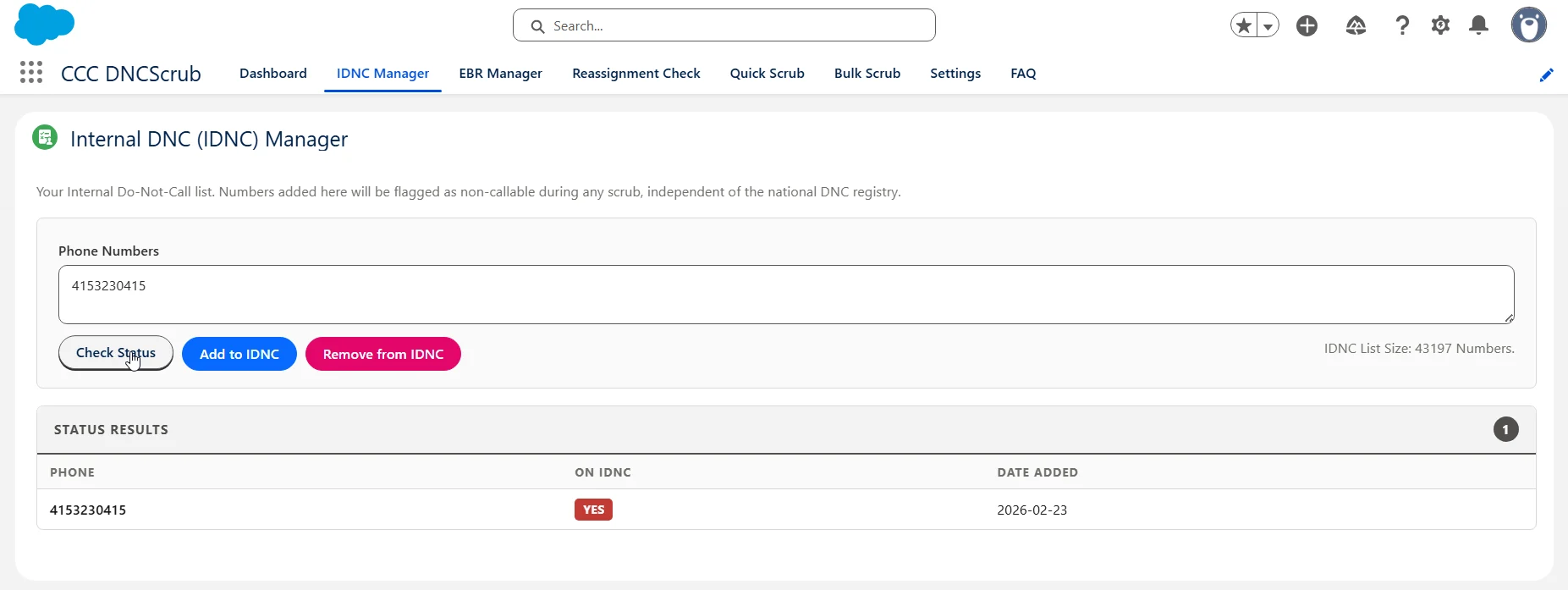
Manage it from the **IDNC Manager** tab — or the IDNC panel on a record page. Enter one or more numbers and use **Check Status**, **Add to IDNC**, or **Remove from IDNC**. Numbers on the IDNC return result code `P` (Internal DNC) and are marked non-callable in all future scrubs.
## Internal DNC (IDNC) Management
Your **Internal DNC** list is your organization's private do-not-call list, separate from the national registry. Use it when a customer requests not to be called, you receive a written opt-out, or you need to block numbers beyond federal/state lists.
Manage it from the **IDNC Manager** tab — or the IDNC panel on a record page. Enter one or more numbers and use **Check Status**, **Add to IDNC**, or **Remove from IDNC**. Numbers on the IDNC return result code `P` (Internal DNC) and are marked non-callable in all future scrubs.
 ## EBR Management
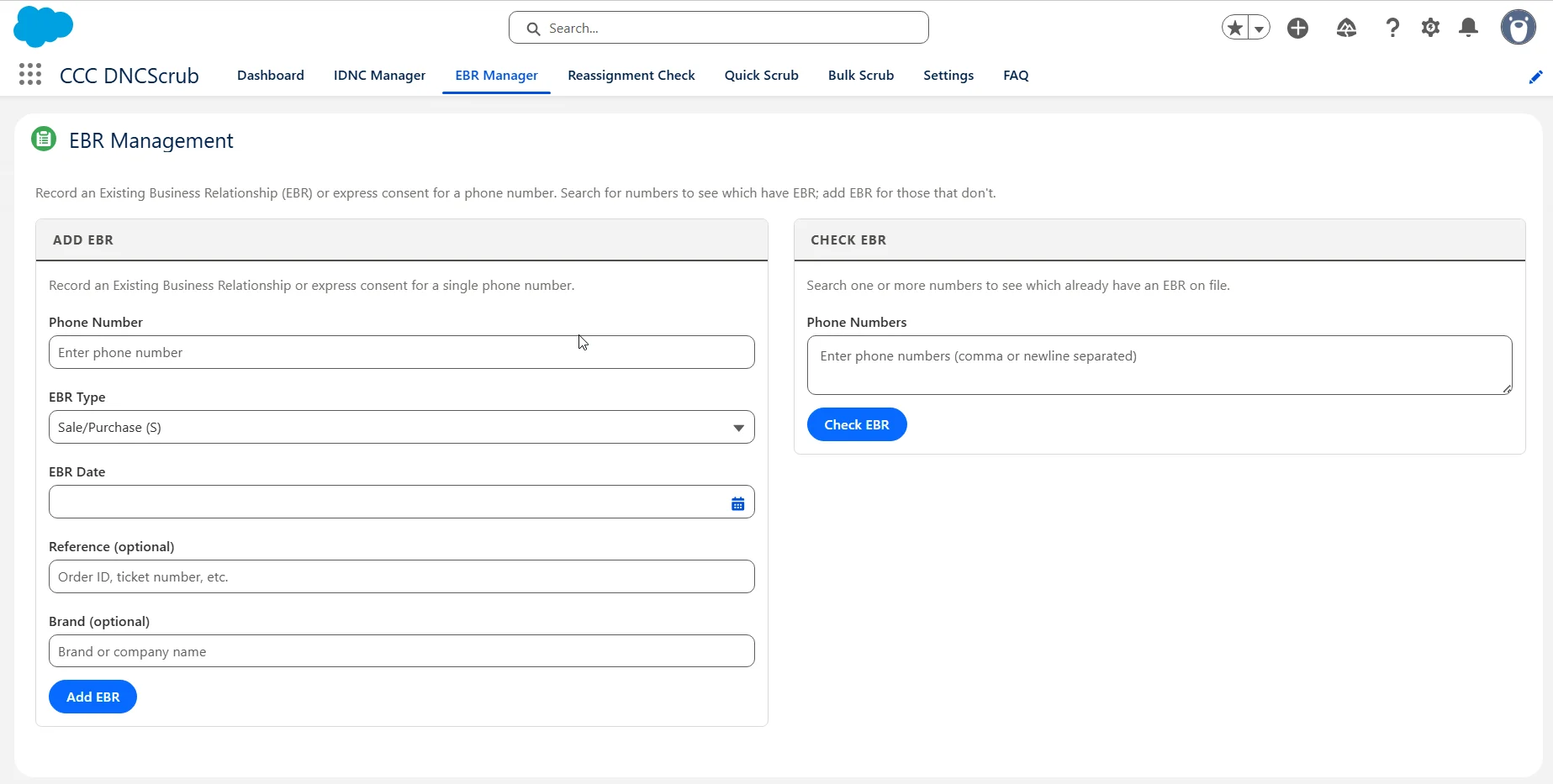
An **Existing Business Relationship (EBR)** is a legal exemption that can let you call a DNC-listed number. From the **EBR Manager** tab, use **Add EBR** to record a relationship for a number (EBR type, date, optional reference and brand), and **Check EBR** to see which numbers already have one on file.
## EBR Management
An **Existing Business Relationship (EBR)** is a legal exemption that can let you call a DNC-listed number. From the **EBR Manager** tab, use **Add EBR** to record a relationship for a number (EBR type, date, optional reference and brand), and **Check EBR** to see which numbers already have one on file.
 | EBR Type | Exemption window |
| - | - |
| **Sale** | 18 months from the last transaction |
| **Inquiry** | 3 months from the consumer's inquiry |
| **Permission** | Express written consent from the consumer |
| **Recent Sale** | Recent transaction (organization-specific) |
| **Newspaper Trial** | Newspaper subscription trial period |
When an EBR is active, the scrub returns codes `E`, `F`, `G`, `H`, or `O` instead of `D`, indicating the number is callable under the exemption.
## Reassignment Check (Authority+)
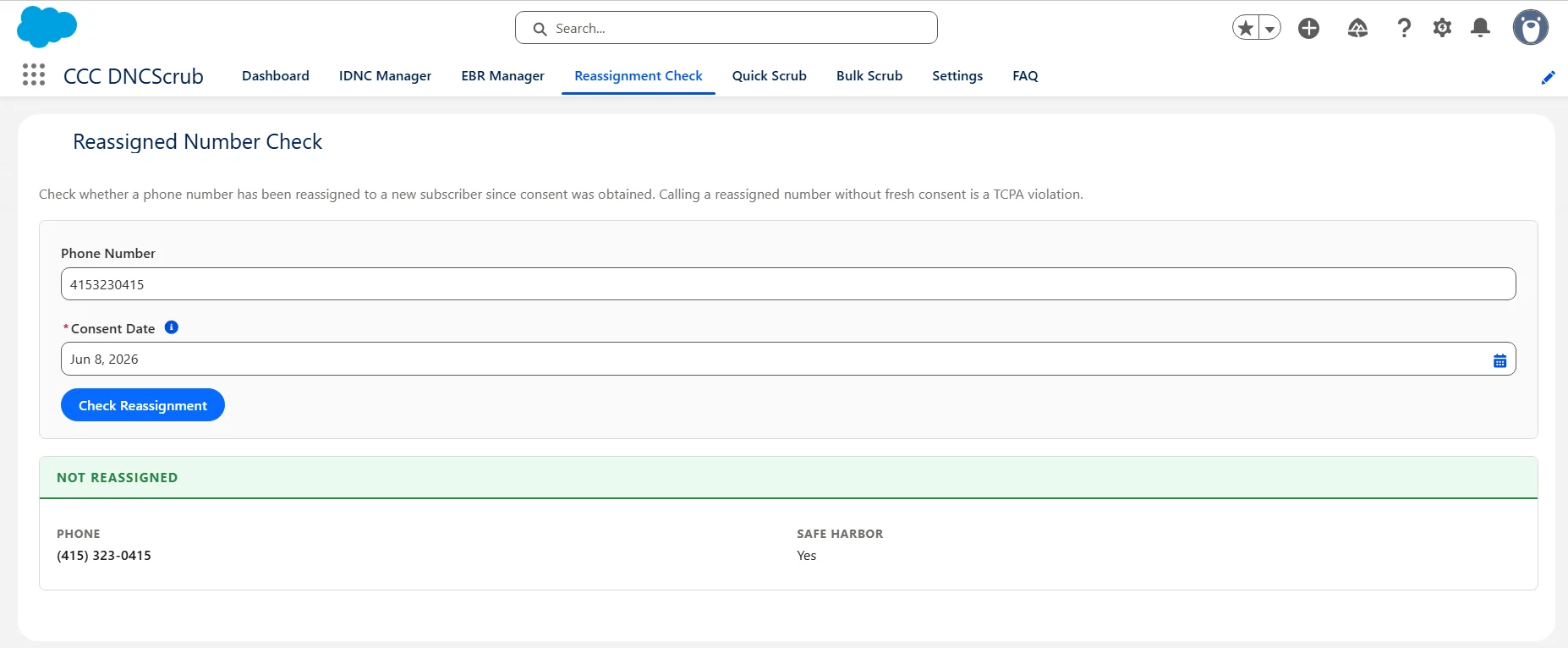
Under the TCPA, calling a number that was reassigned to a new subscriber after you obtained consent can create legal liability. The **Reassignment Check** tab (Authority+) verifies whether a number still belongs to the original subscriber.
Provide the **Phone Number** and the **Consent Date** — when the customer originally agreed to be contacted.
Select **Check Reassignment**. The system checks whether the number changed hands after the consent date.
If **Safe Harbor** is *Yes*, you have TCPA safe harbor protection — the reassignment database confirms the number had not been reassigned at the time of the call.
| EBR Type | Exemption window |
| - | - |
| **Sale** | 18 months from the last transaction |
| **Inquiry** | 3 months from the consumer's inquiry |
| **Permission** | Express written consent from the consumer |
| **Recent Sale** | Recent transaction (organization-specific) |
| **Newspaper Trial** | Newspaper subscription trial period |
When an EBR is active, the scrub returns codes `E`, `F`, `G`, `H`, or `O` instead of `D`, indicating the number is callable under the exemption.
## Reassignment Check (Authority+)
Under the TCPA, calling a number that was reassigned to a new subscriber after you obtained consent can create legal liability. The **Reassignment Check** tab (Authority+) verifies whether a number still belongs to the original subscriber.
Provide the **Phone Number** and the **Consent Date** — when the customer originally agreed to be contacted.
Select **Check Reassignment**. The system checks whether the number changed hands after the consent date.
If **Safe Harbor** is *Yes*, you have TCPA safe harbor protection — the reassignment database confirms the number had not been reassigned at the time of the call.
 ## Bulk Scrub and Scheduling
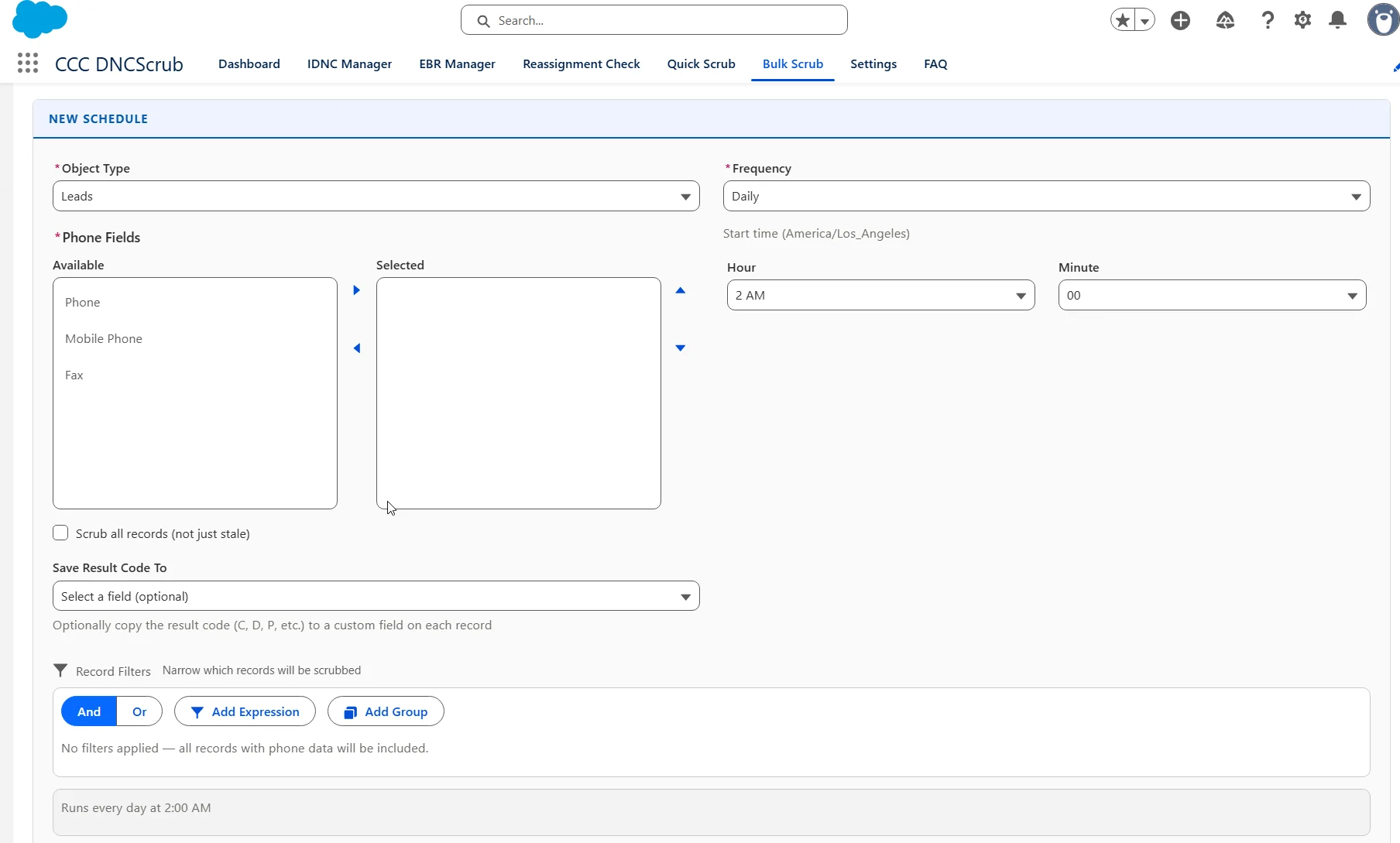
The **Bulk Scrub** tab scrubs records in batches and can run on a schedule.
Select **New Schedule** and choose the object — Lead, Contact, Account, or Campaign Member — and the phone fields to scrub.
Choose how often it runs:
* **One Time** — runs once on a specific date
* **Daily** — runs every day at a set time
* **Weekly** — runs on selected days of the week
* **Monthly** — runs on a specific day of the month
Add filters to target specific records (for example, only Leads with Status = *Hot*). The record-count preview shows how many records will be processed before you save.
**Save Result Code To** copies the raw result code (`C`, `D`, `P`, and so on) onto a field of your choice on each record, which is useful if you already report on an existing column.
Records are processed in batches of 1,000, with one API call per batch of distinct numbers. Records scrubbed within the rescrub interval are skipped — tick **Scrub all records (not just stale)** to override that and re-scrub everything in scope.
## Bulk Scrub and Scheduling
The **Bulk Scrub** tab scrubs records in batches and can run on a schedule.
Select **New Schedule** and choose the object — Lead, Contact, Account, or Campaign Member — and the phone fields to scrub.
Choose how often it runs:
* **One Time** — runs once on a specific date
* **Daily** — runs every day at a set time
* **Weekly** — runs on selected days of the week
* **Monthly** — runs on a specific day of the month
Add filters to target specific records (for example, only Leads with Status = *Hot*). The record-count preview shows how many records will be processed before you save.
**Save Result Code To** copies the raw result code (`C`, `D`, `P`, and so on) onto a field of your choice on each record, which is useful if you already report on an existing column.
Records are processed in batches of 1,000, with one API call per batch of distinct numbers. Records scrubbed within the rescrub interval are skipped — tick **Scrub all records (not just stale)** to override that and re-scrub everything in scope.
 Saved schedules are listed with their object, fields, filters, frequency, and next run time. Use the buttons on each row to activate or pause a schedule, edit it, view the status of its most recent run, or delete it.
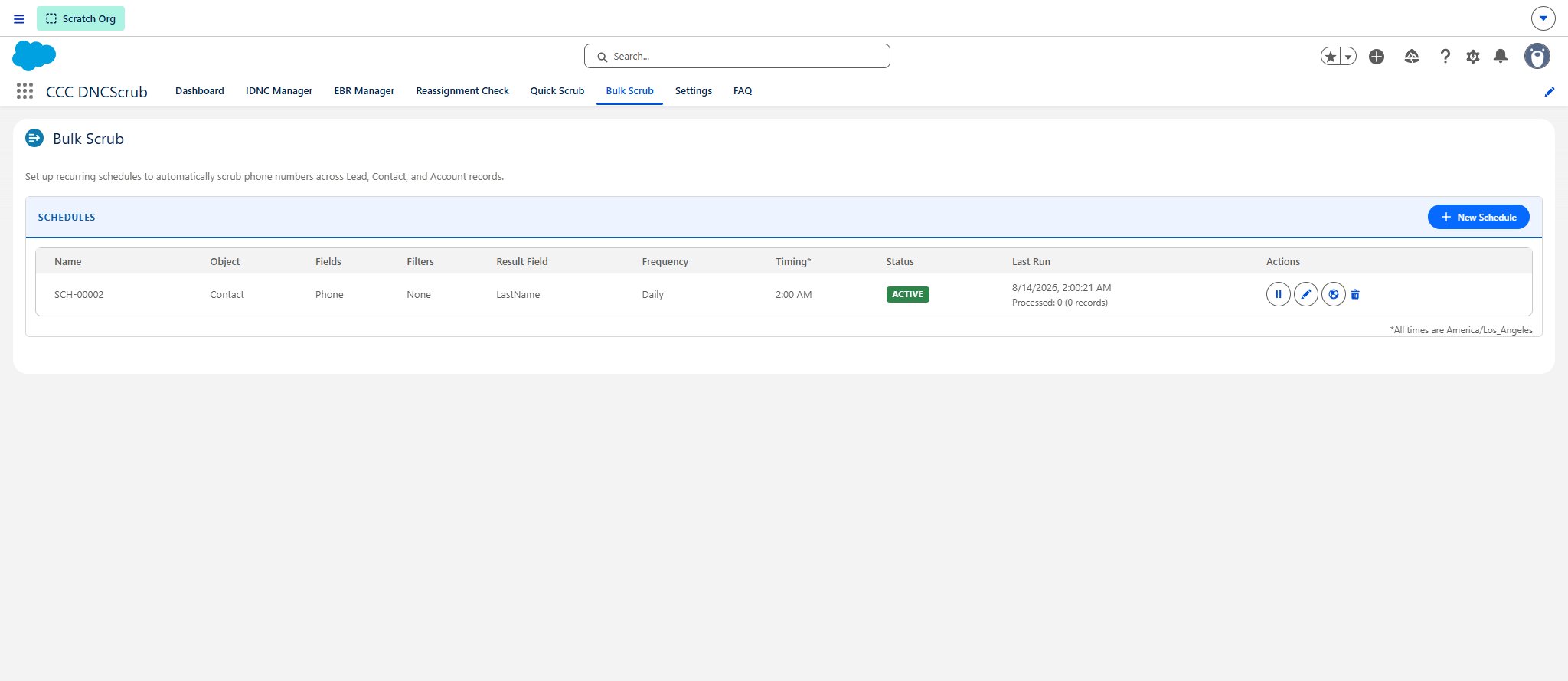 **A new schedule is saved inactive and will not run until you activate it.** Saving only stores the definition. Select the play button on the schedule's row to activate it; the Status column then changes from *Inactive* to *Active* and a next run time appears. Pausing a schedule stops the underlying job, and reactivating creates it again.
### How a bulk scrub runs
Start times are shown and entered in the time zone noted at the bottom of the schedule list — your Salesforce user's time zone.
When a schedule fires:
All records of the chosen object that have a value in at least one of the selected phone fields, narrowed by any filters you added.
By default, records scrubbed within your rescrub interval are skipped, so a daily schedule over a monthly interval only picks up what has become stale or is new. **Scrub all records (not just stale)** overrides this and re-scrubs everything in scope.
Phone numbers are gathered across all selected fields and reduced to distinct numbers, so the same number appearing on several records — or written in different formats — is sent once, not once per record.
Records are processed in batches of 1,000, with one API call per batch of distinct numbers. Bulk scrub always calls the API rather than reading the cache, and refreshes the cached result for every number it checks.
Each record's summary fields are updated with the **worst** result across its phone fields, and a **Scrub Detail** child record is written per phone field. If you set **Save Result Code To**, the raw code is copied to that field as well. Every operation is recorded in the Scrub Log.
### Checking that a run worked
The schedule row shows **Last Run** and a summary of what happened, for example `Processed: 1,240 (1,240 records)`. The status button on the row opens the progress of the most recent batch job, including any errors.
For more detail:
* **Setup → Apex Jobs** shows the batch job itself, its status, and any failures.
* The **Scrub Log** (`CCC_Scrub_Log__c`) records a `Bulk Scrub` entry per run, and `Bulk Scrub Error` if a run failed.
To be emailed when a run finishes, enable **Send email notification after bulk scrub** on the Settings tab and set the notification address. The email reports how many records were processed and updated.
To try a schedule's settings without waiting for it to fire, use the run button on the schedule row. It runs the same scrub immediately, once, without changing the schedule.
## Where Scrub Data Is Stored
Aggregate (worst-case) results are stored in custom fields on Lead, Contact, Account, and Campaign Member:
| Field Label | API Name | Description |
| - | - | - |
| Scrub Result | `CCC_Scrub_Result__c` | Result code from the most recent scrub |
| Scrub Status | `CCC_Scrub_Status__c` | Human-readable status (Clean, Do Not Call, EBR, etc.) |
| Last Scrubbed | `CCC_Last_Scrubbed__c` | Date and time of the most recent scrub |
| Scrub Reason | `CCC_Scrub_Reason__c` | DNC list match detail or reason |
| Is Reassigned | `CCC_Is_Reassigned__c` | Whether the phone was reassigned (Authority+) |
| EBR Type | `CCC_EBR_Type__c` | Type of EBR exemption, if any |
When multiple phone fields are configured, each gets its own **Scrub Detail** (`CCC_Scrub_Detail__c`) child record tracking that field's result code, status, line type, carrier, region, and last-scrubbed time. Every operation is also written to the **Scrub Log** (`CCC_Scrub_Log__c`) audit object.
### How results are reused between scrubs
Scrub results are cached per phone number in `CCC_Phone_Cache__c`, so the same number is not paid for twice within your rescrub interval — even when it appears on several records, or is stored in different formats. `(415) 323-0415`, `415-323-0415` and `1-415-323-0415` all resolve to the same cached entry.
Bulk Scrub always calls the API and refreshes the cache; Quick Scrub, record-page scrubs and auto-scrub read from it first and only call the API when there is no unexpired entry. Each entry stores its own expiry, stamped when it was written, so changing the rescrub interval affects numbers scrubbed from then on rather than rewriting entries you already have.
The cache holds one row per distinct number and is emptied of expired rows by the daily cleanup job. It is a billing optimisation only — `CCC_Scrub_Log__c` remains the audit record.
### Using scrub data in Salesforce
Because the CCC fields are standard custom fields, they work everywhere:
* **Reports & dashboards** — group or filter on `CCC_Scrub_Status__c` to report compliance across your database.
* **List views** — filter to see all *Do Not Call* or *Clean* records at a glance.
* **Flow / Process Builder** — trigger actions when `CCC_Scrub_Status__c` changes (e.g. notify a manager when a lead is flagged as a litigator).
* **Validation rules** — block lead conversion or activity creation when the status is *Do Not Call* or *Litigator*.
## Administration Notes
* **Rescrub interval** — set on the Settings tab as a value plus a unit of hours, days, or months; applies org-wide to panels, Quick Scrub, and bulk operations.
* **Daily cleanup job** — clears expired cache entries, and old audit logs if you have set a retention period. Its status is shown on the Settings tab, with a **Schedule now** button if it is missing.
* **Storage** — the scrub cache holds one row per distinct phone number, so it grows to roughly the number of unique numbers you scrub and then levels off. `CCC_Scrub_Log__c` grows with every scrub and is the only object without a natural ceiling; check **Setup → Storage Usage** periodically if you scrub at high volume.
* **Remote Site Settings** — three sites must be active for all features. They are included in the package; verify them under **Setup → Remote Site Settings**:
| Name | URL | Used For |
| - | - | - |
| `CCC_FullScrub` | `https://www.dncscrub.com` | DNC scrubbing, IDNC, and EBR |
| `CCC_DataAPI` | `https://dataapi.dncscrub.com` | Authority+ reassignment checking |
| `CCC_LitigatorAPI` | `https://api.dncscrub.com` | Litigator screening |
## Support
* [DNCScrub API Documentation](/api-reference/overview)
* [Salesforce Lightning Experience Help](https://help.salesforce.com/)
* [Contact Support](mailto:support@dnc.com)
This documentation is built and hosted on [Mintlify](https://mintlify.com), a developer documentation platform.
**A new schedule is saved inactive and will not run until you activate it.** Saving only stores the definition. Select the play button on the schedule's row to activate it; the Status column then changes from *Inactive* to *Active* and a next run time appears. Pausing a schedule stops the underlying job, and reactivating creates it again.
### How a bulk scrub runs
Start times are shown and entered in the time zone noted at the bottom of the schedule list — your Salesforce user's time zone.
When a schedule fires:
All records of the chosen object that have a value in at least one of the selected phone fields, narrowed by any filters you added.
By default, records scrubbed within your rescrub interval are skipped, so a daily schedule over a monthly interval only picks up what has become stale or is new. **Scrub all records (not just stale)** overrides this and re-scrubs everything in scope.
Phone numbers are gathered across all selected fields and reduced to distinct numbers, so the same number appearing on several records — or written in different formats — is sent once, not once per record.
Records are processed in batches of 1,000, with one API call per batch of distinct numbers. Bulk scrub always calls the API rather than reading the cache, and refreshes the cached result for every number it checks.
Each record's summary fields are updated with the **worst** result across its phone fields, and a **Scrub Detail** child record is written per phone field. If you set **Save Result Code To**, the raw code is copied to that field as well. Every operation is recorded in the Scrub Log.
### Checking that a run worked
The schedule row shows **Last Run** and a summary of what happened, for example `Processed: 1,240 (1,240 records)`. The status button on the row opens the progress of the most recent batch job, including any errors.
For more detail:
* **Setup → Apex Jobs** shows the batch job itself, its status, and any failures.
* The **Scrub Log** (`CCC_Scrub_Log__c`) records a `Bulk Scrub` entry per run, and `Bulk Scrub Error` if a run failed.
To be emailed when a run finishes, enable **Send email notification after bulk scrub** on the Settings tab and set the notification address. The email reports how many records were processed and updated.
To try a schedule's settings without waiting for it to fire, use the run button on the schedule row. It runs the same scrub immediately, once, without changing the schedule.
## Where Scrub Data Is Stored
Aggregate (worst-case) results are stored in custom fields on Lead, Contact, Account, and Campaign Member:
| Field Label | API Name | Description |
| - | - | - |
| Scrub Result | `CCC_Scrub_Result__c` | Result code from the most recent scrub |
| Scrub Status | `CCC_Scrub_Status__c` | Human-readable status (Clean, Do Not Call, EBR, etc.) |
| Last Scrubbed | `CCC_Last_Scrubbed__c` | Date and time of the most recent scrub |
| Scrub Reason | `CCC_Scrub_Reason__c` | DNC list match detail or reason |
| Is Reassigned | `CCC_Is_Reassigned__c` | Whether the phone was reassigned (Authority+) |
| EBR Type | `CCC_EBR_Type__c` | Type of EBR exemption, if any |
When multiple phone fields are configured, each gets its own **Scrub Detail** (`CCC_Scrub_Detail__c`) child record tracking that field's result code, status, line type, carrier, region, and last-scrubbed time. Every operation is also written to the **Scrub Log** (`CCC_Scrub_Log__c`) audit object.
### How results are reused between scrubs
Scrub results are cached per phone number in `CCC_Phone_Cache__c`, so the same number is not paid for twice within your rescrub interval — even when it appears on several records, or is stored in different formats. `(415) 323-0415`, `415-323-0415` and `1-415-323-0415` all resolve to the same cached entry.
Bulk Scrub always calls the API and refreshes the cache; Quick Scrub, record-page scrubs and auto-scrub read from it first and only call the API when there is no unexpired entry. Each entry stores its own expiry, stamped when it was written, so changing the rescrub interval affects numbers scrubbed from then on rather than rewriting entries you already have.
The cache holds one row per distinct number and is emptied of expired rows by the daily cleanup job. It is a billing optimisation only — `CCC_Scrub_Log__c` remains the audit record.
### Using scrub data in Salesforce
Because the CCC fields are standard custom fields, they work everywhere:
* **Reports & dashboards** — group or filter on `CCC_Scrub_Status__c` to report compliance across your database.
* **List views** — filter to see all *Do Not Call* or *Clean* records at a glance.
* **Flow / Process Builder** — trigger actions when `CCC_Scrub_Status__c` changes (e.g. notify a manager when a lead is flagged as a litigator).
* **Validation rules** — block lead conversion or activity creation when the status is *Do Not Call* or *Litigator*.
## Administration Notes
* **Rescrub interval** — set on the Settings tab as a value plus a unit of hours, days, or months; applies org-wide to panels, Quick Scrub, and bulk operations.
* **Daily cleanup job** — clears expired cache entries, and old audit logs if you have set a retention period. Its status is shown on the Settings tab, with a **Schedule now** button if it is missing.
* **Storage** — the scrub cache holds one row per distinct phone number, so it grows to roughly the number of unique numbers you scrub and then levels off. `CCC_Scrub_Log__c` grows with every scrub and is the only object without a natural ceiling; check **Setup → Storage Usage** periodically if you scrub at high volume.
* **Remote Site Settings** — three sites must be active for all features. They are included in the package; verify them under **Setup → Remote Site Settings**:
| Name | URL | Used For |
| - | - | - |
| `CCC_FullScrub` | `https://www.dncscrub.com` | DNC scrubbing, IDNC, and EBR |
| `CCC_DataAPI` | `https://dataapi.dncscrub.com` | Authority+ reassignment checking |
| `CCC_LitigatorAPI` | `https://api.dncscrub.com` | Litigator screening |
## Support
* [DNCScrub API Documentation](/api-reference/overview)
* [Salesforce Lightning Experience Help](https://help.salesforce.com/)
* [Contact Support](mailto:support@dnc.com)
This documentation is built and hosted on [Mintlify](https://mintlify.com), a developer documentation platform.